Features
Everything you need to stay on time
Open any section for details.
Visual calendar with colour-coded events
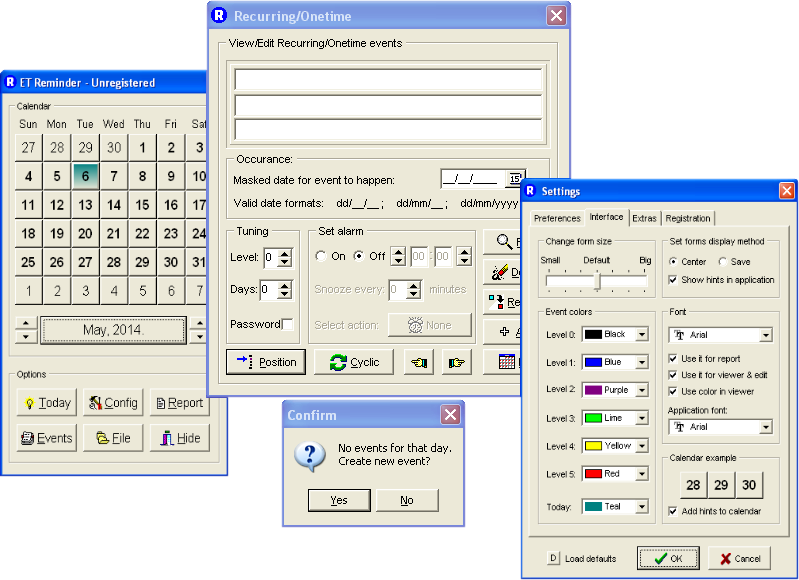
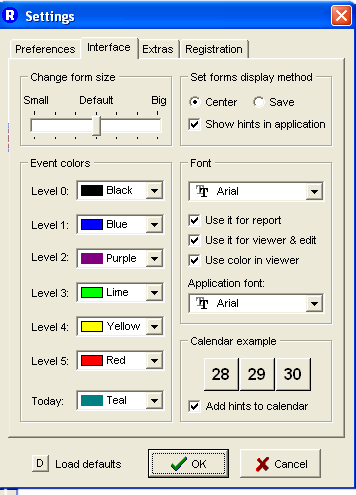
The calendar is the main window and the centre of the app. Click the tray icon to open it, then move through months and years to see every event at once. Events of different importance have different colours.
Hover a day to see a list of its events. Click it to open the Viewer for that day and jump to any event. From the calendar you can open Settings, print a Report, list your events, import or export data, and check for expired events.
One-time events: meetings, dates, appointments
Enter the full date (day, month and year) and the event expires once it has passed. Add an alarm time and an alarm action, for example a sound that repeats every 5 minutes. Set "Days Notice" to see a warning in the Viewer the day before.
Recurring events: birthdays, anniversaries, bills
Enter only the day and leave month and year blank for a monthly event, such as rent or taxes. Enter day and month for a yearly one, such as a birthday or anniversary. Recurring events are the ones you will create most often.
Position events: "every Tuesday and Thursday", "last Sunday of October"
Pick the weekday(s) and which week of the month (every, first, second, last). Typical uses are a favourite TV show, a weekly workout, buying a magazine each Wednesday or adjusting clocks for daylight saving time.
Cyclic events: every n days between two dates
Choose an interval, a start date and an end date. Examples: changing contact lenses every 5 days or a check-up every 28 days. Use a far-off end date for "forever". Private events can be password protected to stay hidden from other people.
Viewer: a summary at every Windows start
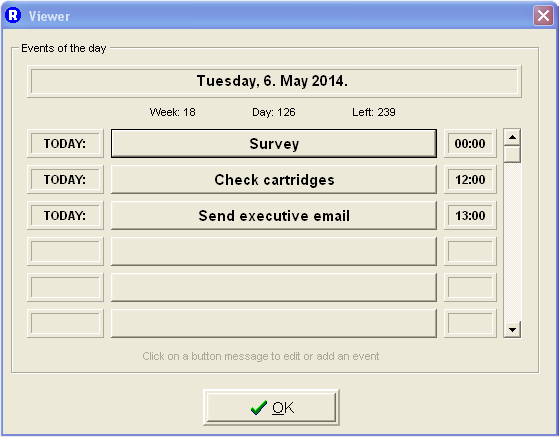
The Viewer lists the events for a date. It appears when Windows starts (only if there are events today), when you click Today, or when you click a day with events. Set the boot message timer to 0 to keep it open until you press OK, or to a number of seconds to hide it automatically.
Alarm actions: popup, sound, video or any program
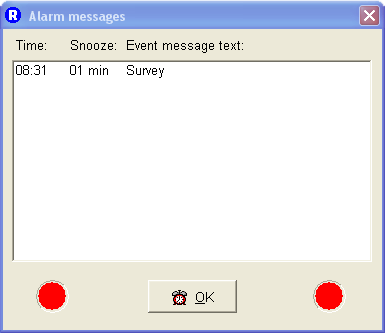
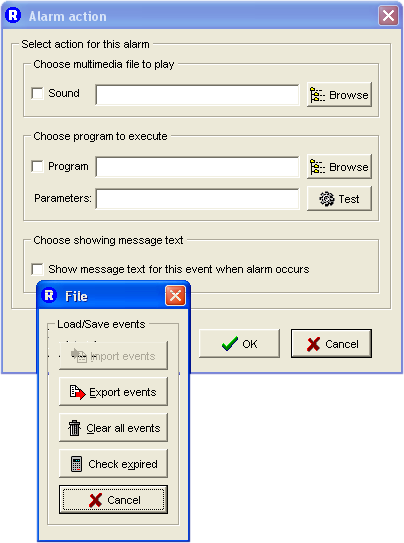
When an alarm fires you can show a popup message with text, sound or video, play any media file (wav, mid, mp3, mpg, avi, mov and others), or run any program or document of a registered file type. That could be a Word file, an HTML page, your favourite music player or a script.
Reports: preview and print your schedule
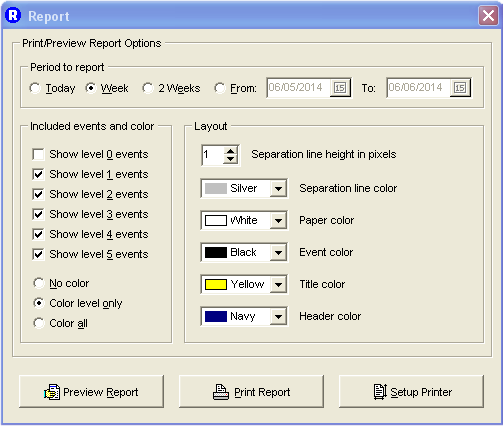
Choose a date range, which events to include and how to colour them, preview the report on screen, then print it on any installed printer.
See it in action
Use the arrows or swipe. Events Reminder keeps the classic Windows look: compact, fast and familiar.